
Frequently Asked Questions
Quick answers to common questions. For detailed how-tos, see the links in each answer.
Signing in
Where do I sign in?
Staff use https://my.studytrax.com. Participants use the portal link their study team provided.
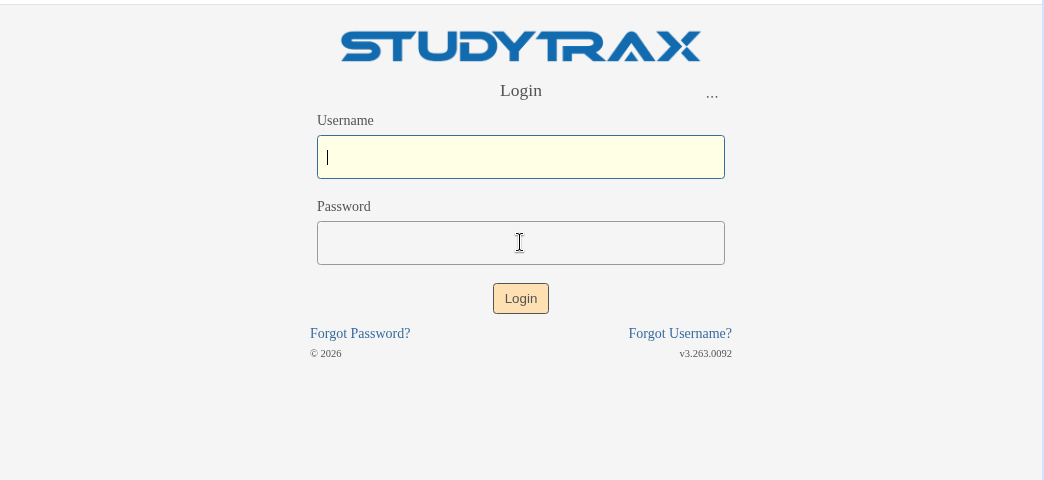
Staff and participants see the same login page: STUDYTRAX logo, Login heading, Username, Password, Login button, and links for Forgot Password? and Forgot Username?
→ Login details | Staff sign-in | Participant sign-in
I forgot my password—how do I reset it?
Click Forgot Password? on the login page, enter your email or username, and follow the email link to set a new password.
A locked account is the same as a password reset—there is no separate unlock. If the reset email does not arrive, ask your coordinator or a colleague with Customer access to reset it for you.
→ Password reset details | Reset password how-to
Is SSO / SAML available?
No. SSO / SAML is not available. Sign in with a StudyTrax username and password.
Users and accounts
How do I add a staff user?
You need Customer access. Go to Customer → Users → New, fill out New Account (Username, name, Email), and Save. The new user gets an email to set their password.
→ Add user details | Add user how-to
How do I unlock a user's account?
Lock and unlock are the same as a password reset. Reset the password from Customer → Users or have the user click Forgot Password? on the login page.
Subjects
How do I add a subject?
You need Subject Management at the site.
- Open your project from the Home page.
- Click + Add Subject in the toolbar.
- Fill out entity, site, Reference ID, and optional name fields.
- Click Create Subject.
The Add Subject dialog includes an entity dropdown, site dropdown, Generate checkbox (if configured), Reference ID, and optional First / M.I. / Last Name fields.
→ Add subject details | Add subject how-to | Subjects
What is Custom Entities?
Custom Entities is a feature that lets projects define their own entity types beyond the default Subject/Encounter model. When Custom Entities is enabled, the Home header shows Custom Entities with tabs for Subjects and Encounters (and any custom entity types the project defines).
What columns appear in the subject list?
The subject list shows: Photo, Reference ID, Project ID, Site, Status, First Name, Last Name, Username.
Queries and data
How do I work with queries?
Queries track data issues—missing values, inconsistencies, or items flagged for review. Staff with Query Management can create and manage queries; Subject Management can view and respond to them.
The existing queries how-to covers roles and common tasks.
→ Queries overview | Queries how-to
How do I export data?
Use Data Sets to export project data. You need Dataset Management at the project or site level.
The existing export how-to covers creating and running exports.
→ Export overview | Export how-to
Session and navigation
What does "session expired" mean?
If you are idle too long, you will see: "You have been logged out because your session has expired." Sign in again to continue.
What is in the Customer menu?
Customer (left nav) includes: Users, Sites, Variable Groups, Medications, Subjects.
What is the top navigation?
Customer-facing top nav: Home, Workbench, Data Sets, Projects, Customer, Help.