
Export FAQ
Common questions about exporting data from StudyTrax.
How do I export data?
You need Dataset Management at the project or site level.
- Sign in at https://my.studytrax.com.
- Open the project.
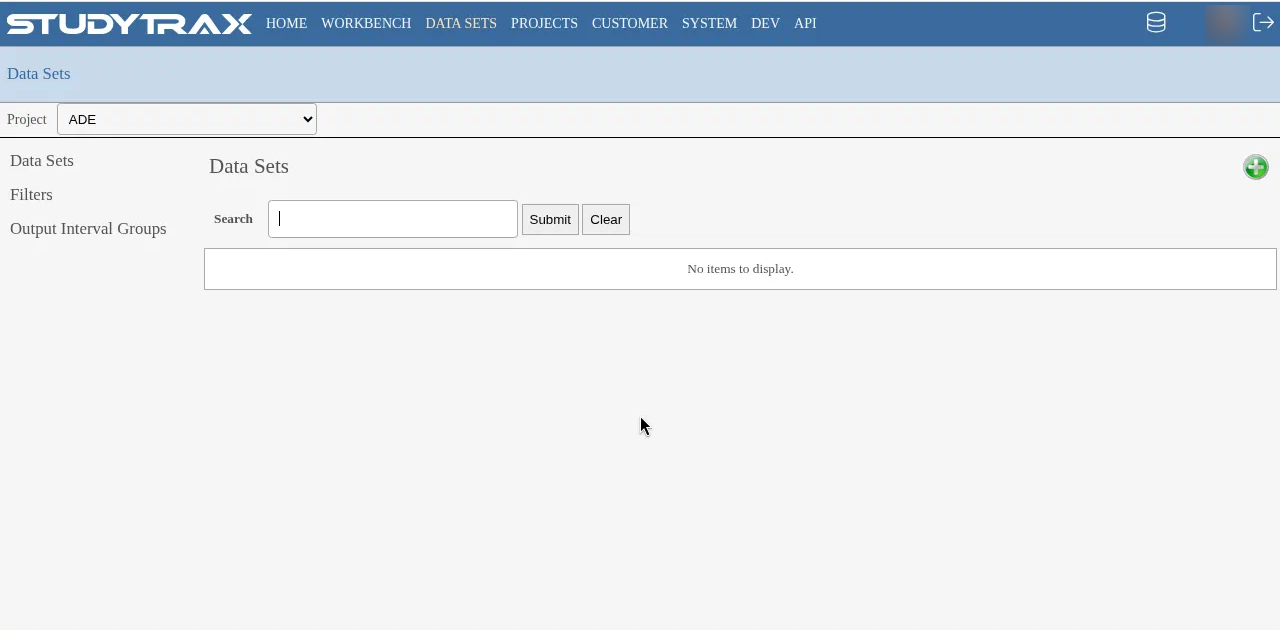
- Open Data Sets (from the top navigation or within the project—confirm location in app).
- Create a new data set or open an existing one.
- Configure which subjects, encounters, and variables to include.
- Run the export and download the file.
What can I export?
Exports can include:
- Subject identifiers (Reference ID, Project ID, name fields—depending on configuration)
- Encounter data (visit dates, form values)
- Variable values from selected Variable Groups
What you search by and what you export can be set separately, so exports can omit identifiers if needed for privacy.
What file formats are available?
The available formats depend on project configuration (confirm in app). The export how-to does not list specific formats.
Can I schedule automatic exports?
Scheduling options depend on project configuration (confirm in app). Consult your project administrator if you need automated exports.
Related
- Export how-to
- Workbench (reports, tables, charts)
- Data model