
Sign in (staff)
Staff work in the production app at https://my.studytrax.com.
Sign in
- Open https://my.studytrax.com.
- Enter your StudyTrax username and password.
- Submit the sign-in form (confirm in app).
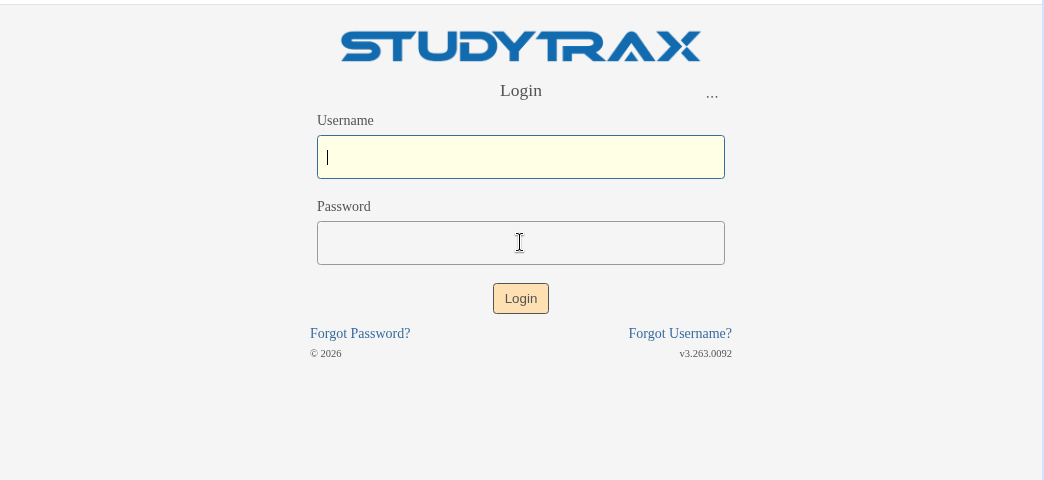
Use a StudyTrax username and password. SSO / SAML is not available now. There is no current SSO how-to.
First-time password
When your account is created, StudyTrax emails you to verify the account and set a password. Use that email, then sign in at https://my.studytrax.com.
Forgot password or locked out
A locked account is a password reset. There is no separate unlock step.
- On the sign-in page, use Forgot password / reset password (confirm in app).
- Set a new password from the email, then sign in again.
- After too many failed attempts, the page may show a captcha. Complete it and try again, or reset the password.
If you cannot use the reset email, a colleague with Customer can reset your password from user management (confirm in app). See Add a staff user.
Help a participant
Participants use the participant portal, not this staff URL, unless your project tells them to.
If you have Subject Administration, the sign-in page may offer a subject-administrator path: your staff credentials plus the subject's Reference ID (public wiki login page; confirm in app).