
Assign project roles
Grant a user access to a project and define what they can do.
Role required: Project Management or Project User Administration (confirm in app)
This page covers adding an existing user to a project. To create a new user account first, see Add a staff user.
Steps
- Sign in at https://my.studytrax.com.
- Open the project.
- Go to Projects → Users (confirm in app).
- Click + to add a user, or click an existing user's name to edit.
- Grant roles per site. Most project roles are site-specific.
- Save.
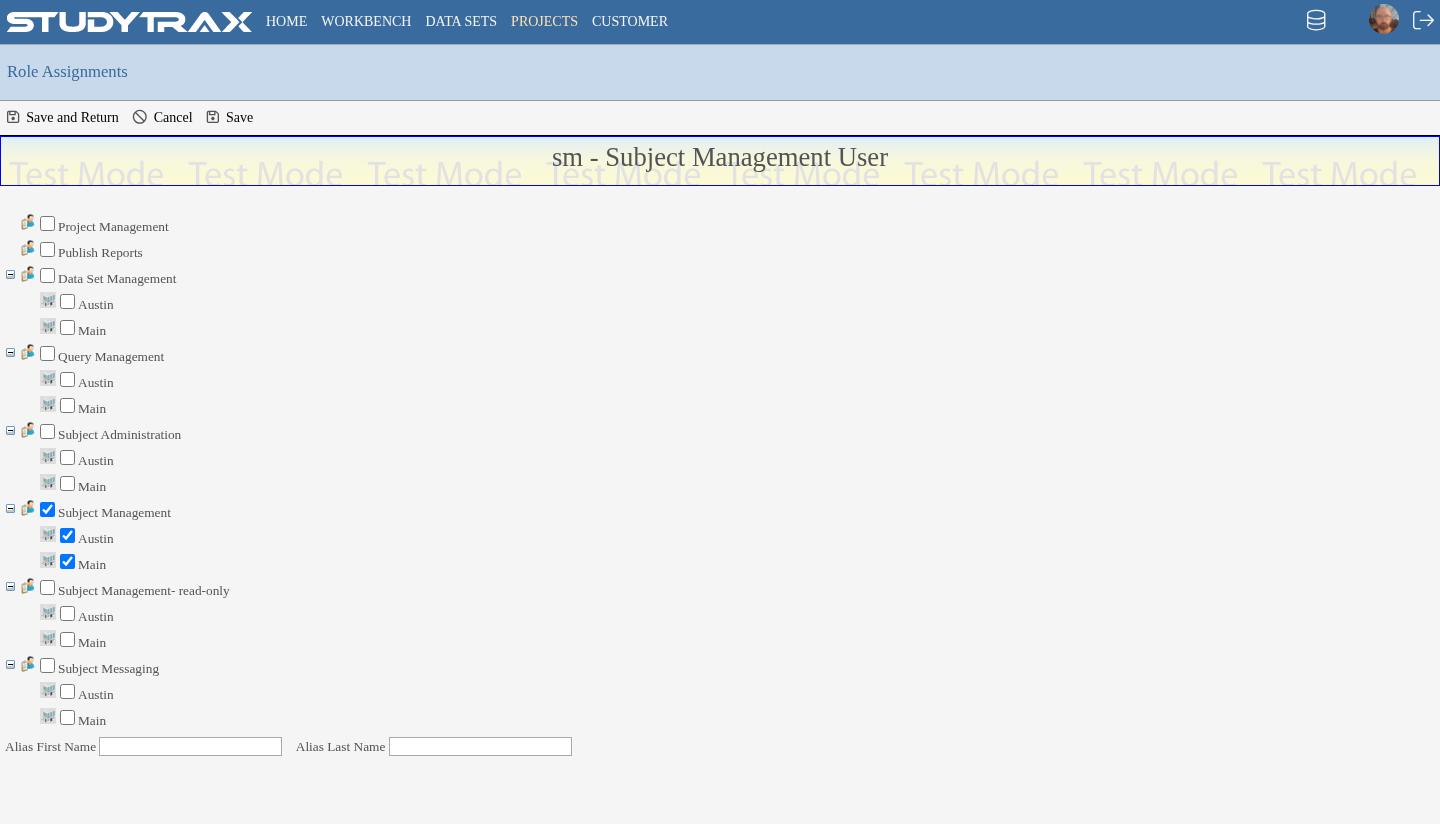
Project and site roles (Aug 2026)
| Role | What it allows |
|---|---|
| Project Management | Full project configuration, users, intervals, variable groups |
| Subject Management | Add subjects, enter data, modify queries |
| Subject Management read-only | View subjects and data, view queries |
| Subject Administration | Manage subject portal accounts |
| Query Management | Create, manage, and close queries |
| Reports | View project reports |
| Dataset Management | Create and run data exports |
| Publish Reports | Publish Workbench reports |
| Randomize | Randomize subjects (if randomization is enabled) |
| View Subject's Treatment | See treatment assignment (if randomization is enabled) |
Do not assign Signing, Unsigning, or Subject Management – Secondary. Those features are removed.
Related
- Add a staff user — create user accounts and customer-level roles
- Create a project