
Reset password (staff)
Forgot your password or locked out? Both are the same reset flow. There is no separate unlock step.
Also called: unlock account, account lockout, MFA lockout, forgot password, reset multi-factor authentication. Lock and unlock are resolved by resetting the password.
Reset your own password
- Go to https://my.studytrax.com.
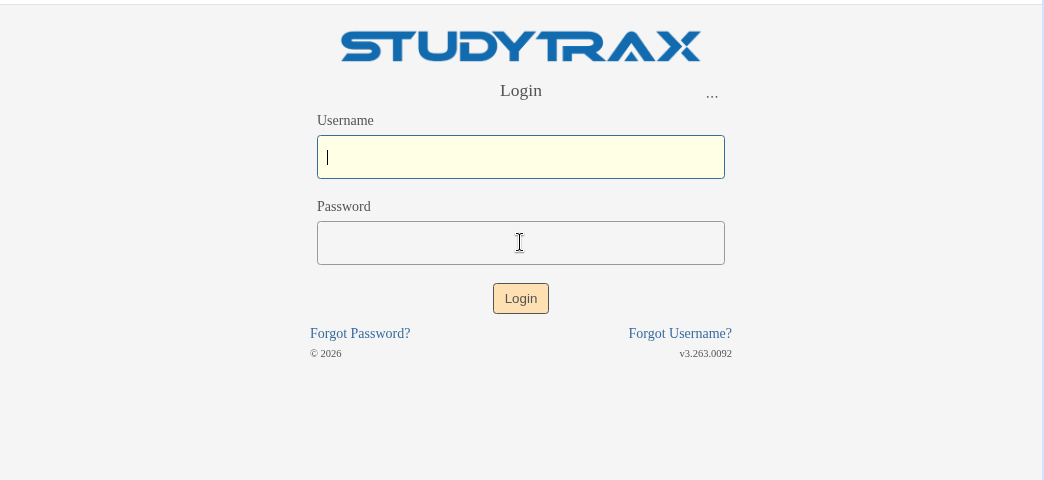
- Click Forgot password (confirm label in app).
- Enter your email or username (confirm in app).
- Check your email for a reset link.
- Set a new password from the link, then sign in.
If the reset email does not arrive, check spam or ask a colleague with Customer to reset it for you (see below).
After too many failed attempts
The sign-in page may show a captcha (confirm in app). Complete the captcha and try again, or reset your password.
Reset another user's password
You need Customer at the customer level.
- Sign in at https://my.studytrax.com.
- Open Customer.
- Open Users.
- Find and open the user.
- Reset their password (confirm in app).
The user receives an email to set a new password.
Lock vs unlock
There is no separate "unlock" action. A locked account is resolved by resetting the password.
MFA lockout
If you are locked out after multi-factor authentication failures, the resolution is the same: reset your password. Contact a colleague with Customer access if you cannot reset it yourself.