
Login FAQ
Common questions about signing into StudyTrax.
Where do staff sign in?
Staff use the production app at https://my.studytrax.com.
Where do participants sign in?
Participants use the portal link their study team provided (email, flyer, or project-code URL). The participant-portal hostname is not published here—each study may use a different address.
- stxportal.com and stxportals.com are retired. Old bookmarks will not work.
If you do not have a current link, ask your study coordinator.
Do staff and participants use the same login page?
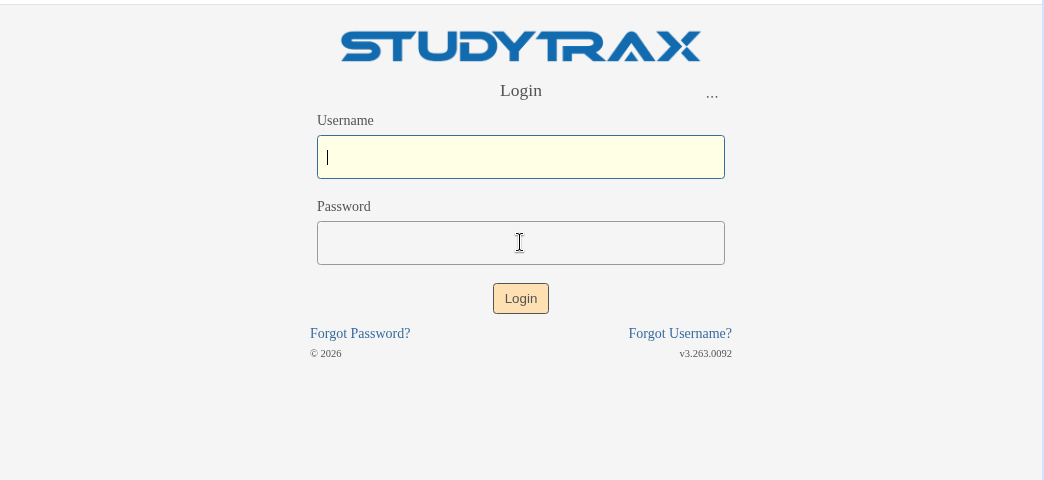
Yes. The login page is shared: STUDYTRAX logo, Login heading, Username and Password fields, Login button, and links for Forgot Password? and Forgot Username?
Staff enter their staff credentials. Participants enter their participant credentials. The system routes you to the correct experience after login.
What do I do if I forgot my password or my account is locked?
A locked account and a forgotten password use the same reset flow—there is no separate unlock step.
- On the login page, click Forgot Password?
- Enter your email or username.
- Check your email for a reset link.
- Set a new password, then sign in.
If the email does not arrive, check spam. Participants should ask their study coordinator. Staff can ask a colleague with Customer access to reset it from user management. To lock or unlock an account manually, use the user management screen.
→ Password reset FAQ | Reset password how-to
What do I do if I forgot my username?
Click Forgot Username? on the login page and follow the prompts (confirm in app). If that does not work, ask your study coordinator (participants) or a colleague with Customer access (staff).
Is SSO / SAML available?
No. SSO / SAML is not available. Sign in with a StudyTrax username and password.
What happens if my session expires?
You will see: "You have been logged out because your session has expired."
Sign in again to continue. The footer may show a session countdown before this happens.
What do participants see after login?
After signing in, participants land on HOME:
- Project selector (if enrolled in more than one study)
- Messages icon in the header (unread badge when messages are waiting)
- Logout link
- Enrollment Forms card with a Forms to Complete button
- Unread-messages card if there are messages
Participants do not see a subject list, search bar, or administrative tabs (Subjects, Encounters). Those are staff features.