
Add Staff User FAQ
Common questions about creating staff accounts.
How do I create a new staff user?
You need Customer access.
- Sign in at https://my.studytrax.com.
- Open Customer from the left navigation.
- Open Users.
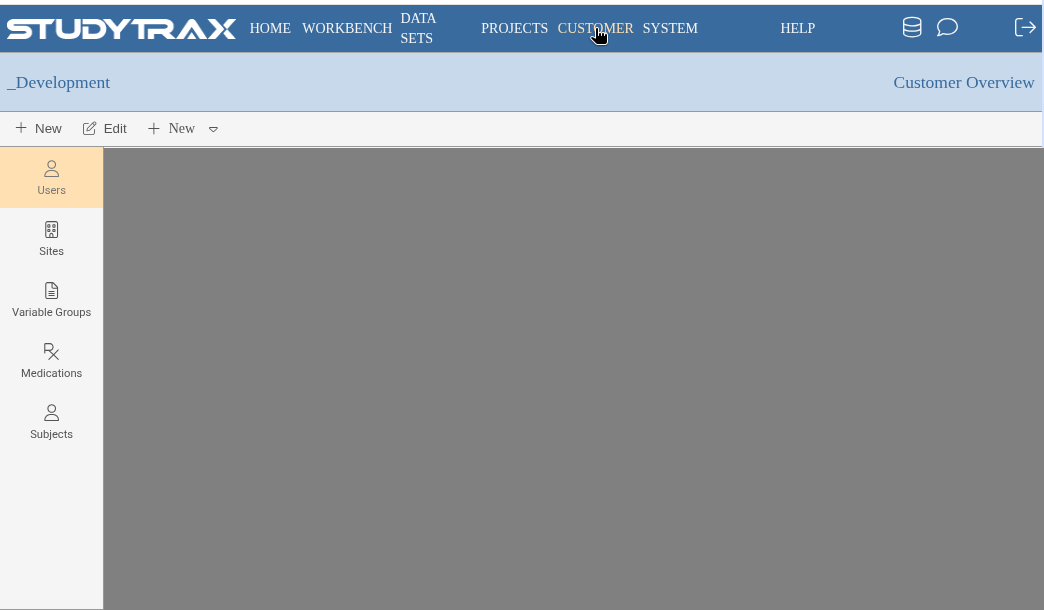
- Click New → New User.
- Fill out New Account:
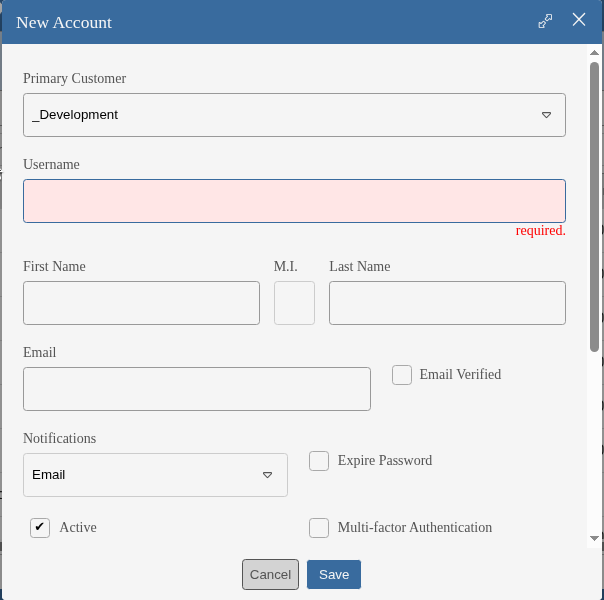
- Primary Customer (dropdown)
- Username (required, must be unique)
- First Name / M.I. / Last Name
- Email + Email Verified checkbox
- Notifications (default: Email)
- Expire Password checkbox
- Active (default: on)
- Multi-factor Authentication checkbox
- Click Save.
The new user receives a system email to verify the account and create a password.
What is the dialog title when adding a user?
The dialog title is New Account, not "New User" or "Add User."
What roles can I assign at the customer level?
Most users do not need customer-level roles. The available customer-level authorizations are:
- Customer — manage users, sites, subject forms (demographics), project forms (Budget, IRB)
- Project Creation — create new projects (the creator automatically gets Project Management on the new project)
- Medication Management — manage the customer medication list
How do I add a user to a project?
Creating the account does not add them to any project. After creating the user:
- Open the project.
- Open Users.
- Click + and select the user.
- Grant roles per site. Most project roles are site-specific.
- Save.
→ Add user how-to | Assign project roles how-to
What project roles are available?
Current project/site role names (Aug 2026): Project Management, Subject Management, Subject Management read-only, Subject Administration, Query Management, Reports, Dataset Management, Publish Reports, Randomize, View Subject's Treatment.
Do not assign Signing, Unsigning, or Subject Management – Secondary. Those features are removed.
What if I need to reset a user's password?
Lock/unlock is a password reset. From user management you can reset a user's password. The user receives an email to set a new one.
→ Password reset FAQ | Reset password how-to