
Export (Data Sets)
Data Sets let you export project data for analysis, reporting, or archival.
Sign in at: https://my.studytrax.com
Print Forms is removed—the data dictionary replaces it for documenting variable definitions.
Who can export
You need Dataset Management at the project or site level.
Create or run an export
- Open the project.
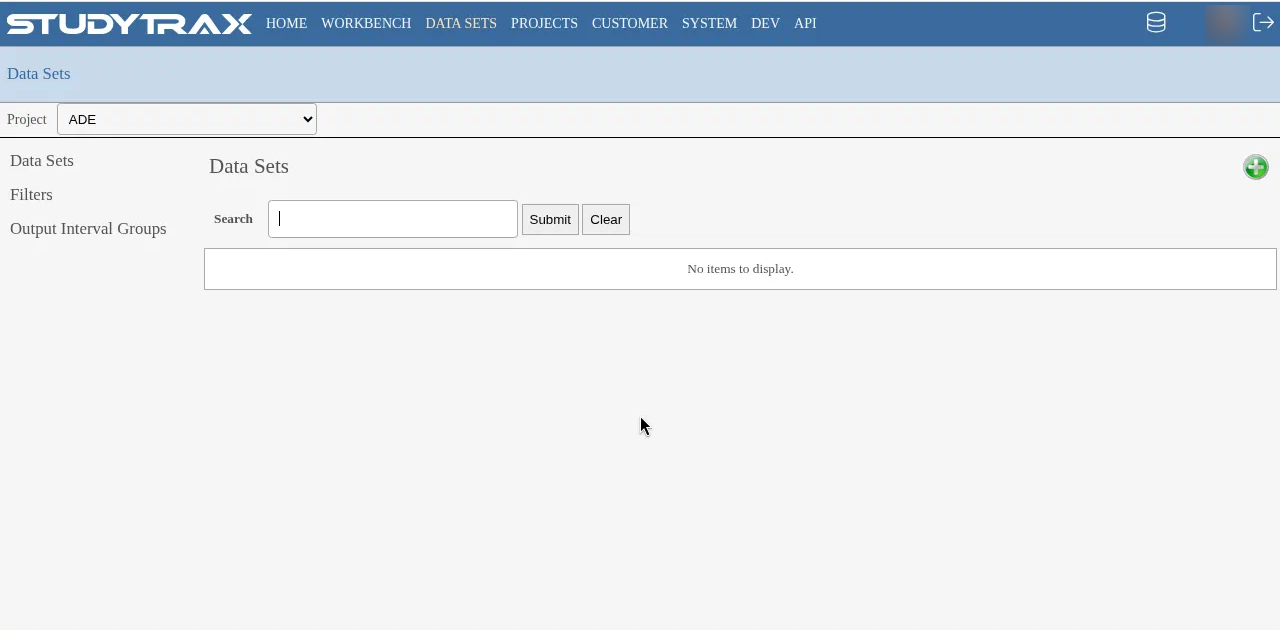
- Go to Projects → Data Sets.
- Create a new data set or open an existing one.
- Select Intervals and use the Variable Finder to choose variables.
- Click Preview to review the data, or export to Excel.
What gets exported
Exports can include:
- Subject identifiers (Reference ID, Project ID, name fields—depending on configuration)
- Encounter data (visit dates, form values)
- Variable values from selected Variable Groups
What you search by and what you export can be set separately, so exports can omit identifiers if needed.
Data dictionary
The data dictionary replaces the older "Print Forms" feature. Use it to document variable definitions and project structure.
File uploads
File attachments export one at a time. No bulk file export is available.
Cloning a project
Use Export Importable Subject Data along with project configuration to clone a project for testing or API development.
Open queries
Data Sets can be configured to ignore values with open queries, excluding disputed data from exports.
Related
- Import and export notes — additional export details
- Workbench — build and publish reports, tables, and charts
- Data model — how subjects, encounters, and variables fit together