
Import and Export Notes
Additional details for data import and export workflows.
Role required: Project Management (import), Dataset Management (export)
Print Forms is removed—use the data dictionary to document variable definitions and project structure.
Data Sets export
Data Sets is the primary export tool:
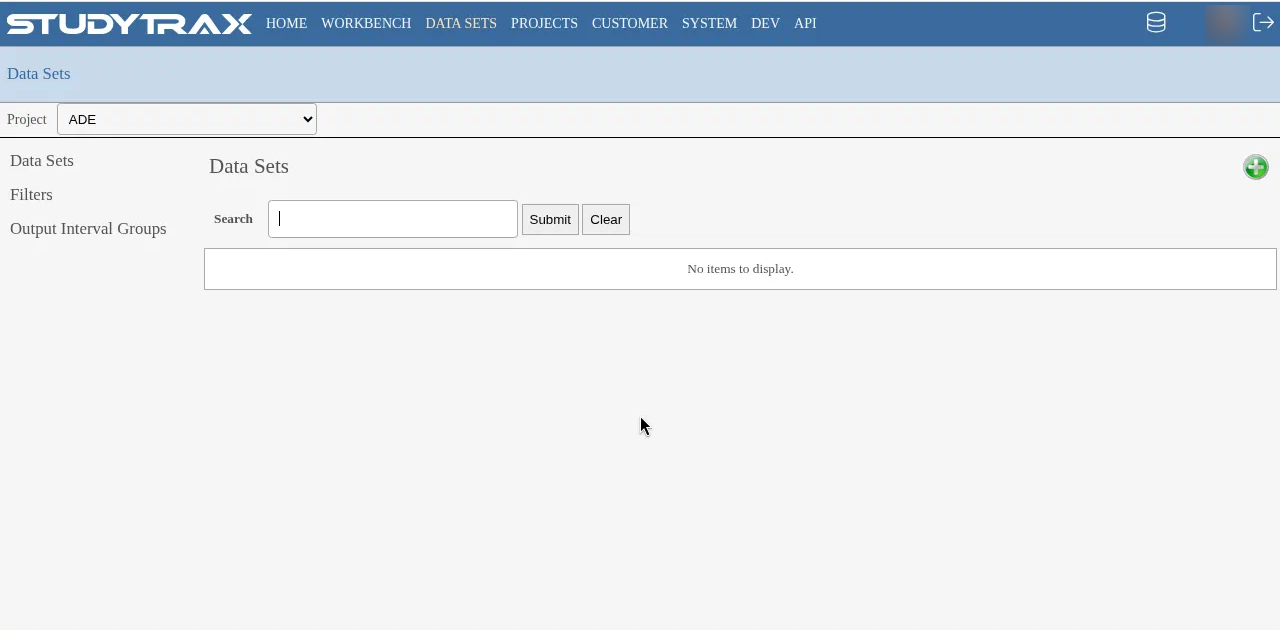
- Go to Projects → Data Sets.
- Select intervals and use the Variable Finder to choose variables.
- Preview the data or export to Excel.
Data dictionary
The data dictionary replaces the older "Print Forms" export. Use it to document variable definitions and structure.
File uploads
File uploads (documents attached to variables) export one at a time.
- No bulk file export is available.
- Download each file individually from the encounter or subject record.
Cloning a project
To clone a project for testing or API development:
- Use Export Importable Subject Data to export the project configuration.
- Import into a new project.
This creates a copy of the project structure without live data.
Re-import considerations
| Scenario | Behavior |
|---|---|
| Re-import same data | Updates existing records |
| Import signatures | Not supported — signatures cannot be imported |
| Re-import after consent | May force re-consent depending on configuration |
If you re-import data for subjects who have already consented, review whether the import triggers re-consent workflows.
Checkbox values
An unchecked checkbox is a valid response.
- Unless the variable is required, leaving a checkbox unchecked is allowed.
- Exports reflect unchecked as a distinct value (not missing).
Allow incomplete data
The Allow incomplete data checkbox appears to the right of Cancel/Save on encounter forms.
- When checked, the encounter can be saved even if required fields are empty.
- Use this for partial data entry or to save progress before completing.
Related
- Import subject data — bulk import steps
- Export — Data Sets overview
- Create a project — project setup