
Enter an encounter
Record a visit or data-collection event for a subject.
Role required: Subject Management
Open or create an encounter
There are several ways to work with encounters:
From the Timeline
- Open the subject.
- On the Timeline, find the interval.
- To create: click under the interval to add an encounter.
- To edit: click the date of an existing encounter.
- For non-fixed intervals: use the sidebar or Details → Encounters (confirm in app).
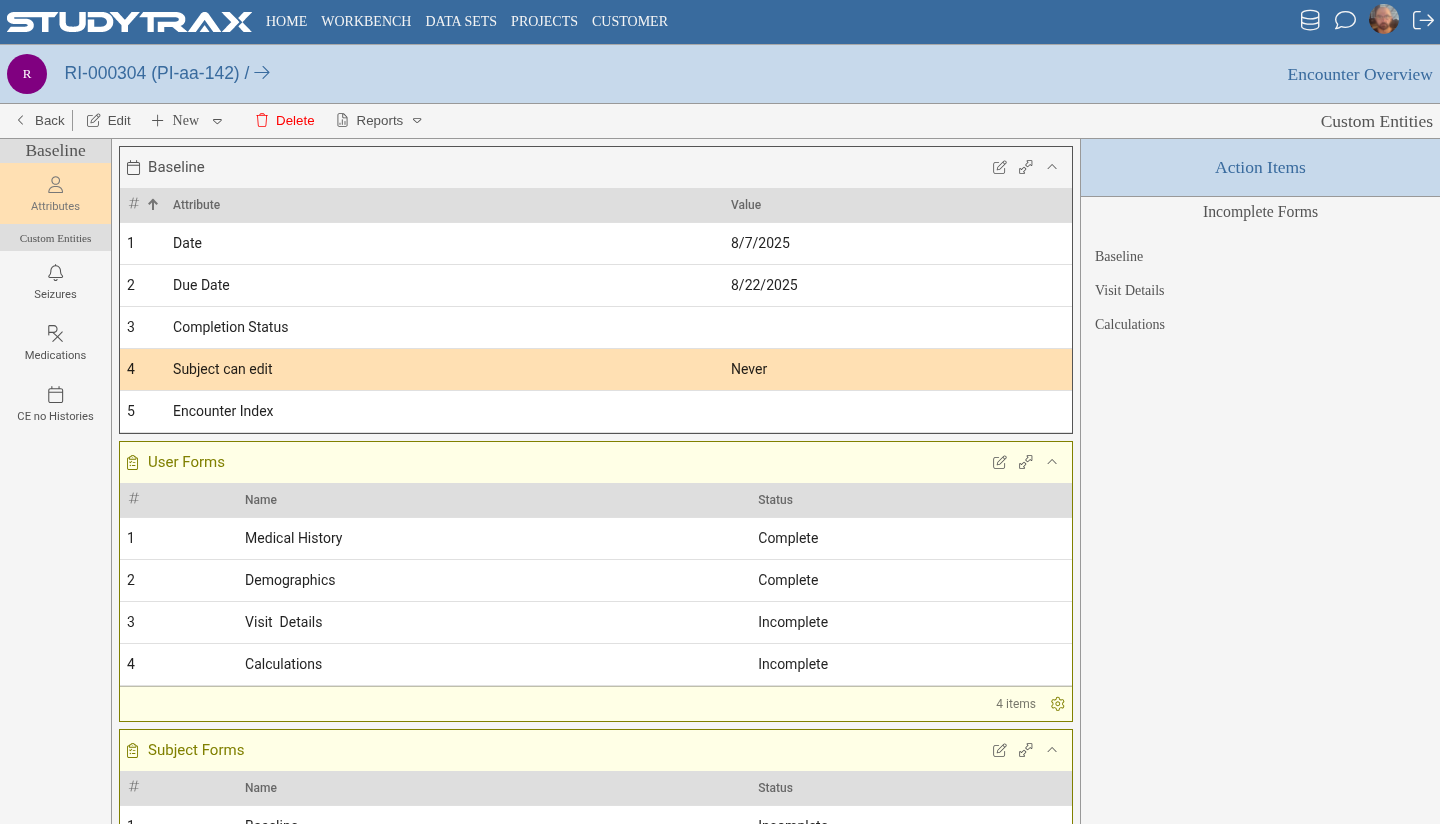
From Details → Encounters
- Open the subject.
- Go to Details → Encounters (confirm in app).
- Click + or Create to add an encounter.
From Home → Encounters
- On Home, open the Encounters tab (List or Calendar view).
- Open an encounter from the list.
- How to create from the calendar view is not confirmed.
Encounter fields
- Date — when the encounter occurred.
- Forms — variable groups attached to this interval; enter data in each.
- Status — Complete, Incomplete, or Unknown. The Timeline may also show Due, Missed, or Not Due.
When you cannot create an encounter
The system enforces visit logic:
- A follow-up encounter requires a Baseline encounter first.
- A Baseline encounter requires the subject to have passed screening (if screening is enabled).
- A screening encounter is blocked if a prior screening failed.
- A non-fixed follow-up cannot occur during screening.
- A non-fixed screening cannot occur after the subject is enrolled.
Related
- Create an interval — define visit types
- Subjects — find and manage subjects