
Portal access
Let subjects (participants) view and complete forms in the participant portal instead of staff entering data for them.
Overview
Two things control what a subject sees in the portal:
- Variable Group settings — mark a form as subject-accessible
- Interval settings — configure portal options for each visit
The exact 2025 click-paths are not fully confirmed here. The tasks below describe what to look for (confirm in app).
Make a form subject-accessible
You need Customer (for customer-level forms) or Project Management (for project-level forms).
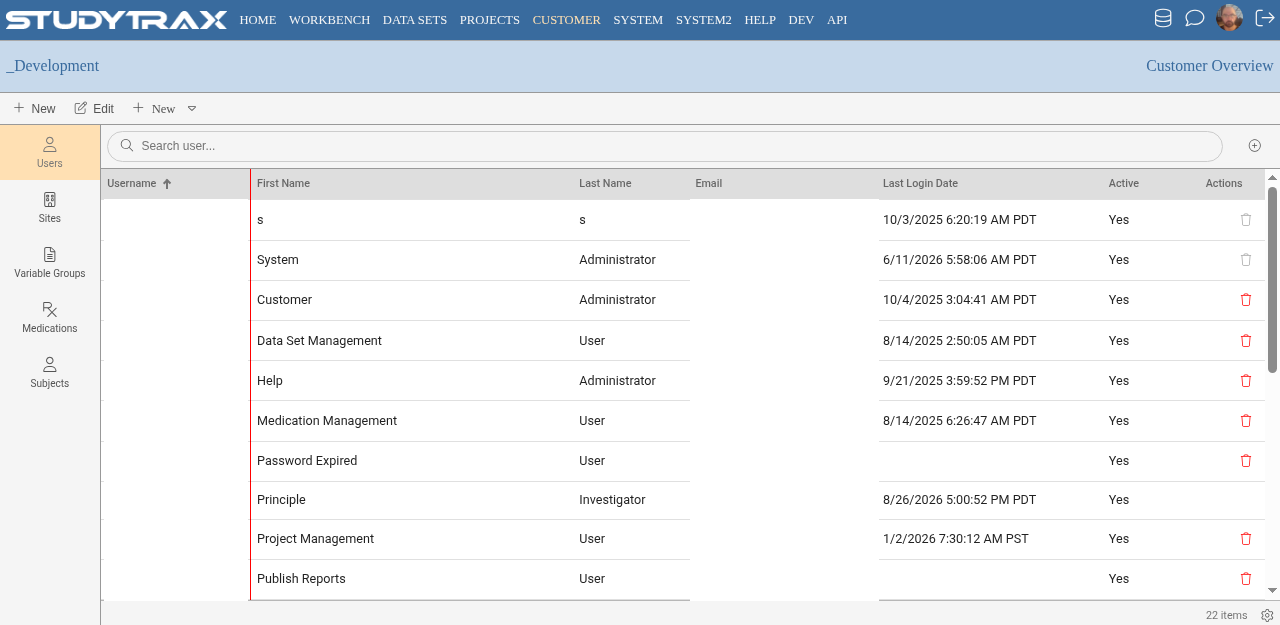
- Open the Variable Group (form) you want subjects to complete.
- Find the setting that makes it subject-accessible or available in the portal (confirm label in app).
- Save.
Configure portal options on an interval
You need Project Management.
- Open the project's interval (visit) definitions.
- Open the interval where subjects should see the form.
- Find portal options or subject-portal settings (confirm in app).
- Enable the forms and set any deadlines or windows.
- Save.
What subjects see
Once configured, subjects sign in to the participant portal (see Participant sign-in) and see the forms available for their current visits.
Who manages subject portal accounts
Staff with Subject Administration can manage a subject's portal credentials from the subject record (confirm in app). See Staff sign-in for the subject-administrator path if your project uses it.
Related
- Participant sign-in
- Subjects — staff-side data entry
- Add a staff user — grant Subject Administration or Project Management