
Schedule Status
Use schedule status to track participant enrollment state and filter by follow-up discontinuation.
Role required: Subject Management (view), Project Management (configure)
Schedule status values
| Code | Name | Meaning |
|---|---|---|
| 1 | InScreening | Participant is being screened |
| 2 | FailedScreening | Did not pass screening criteria |
| 3 | PassedScreening | Passed screening, not yet enrolled |
| 4 | Enrolled | Actively enrolled in the study |
| 5 | Paused | Follow-up paused (discontinued) |
| 90 | NotInProject | Not associated with this project |
| 98 | UnknownInformational | Status unknown (informational) |
| 99 | Unknown | Status unknown |
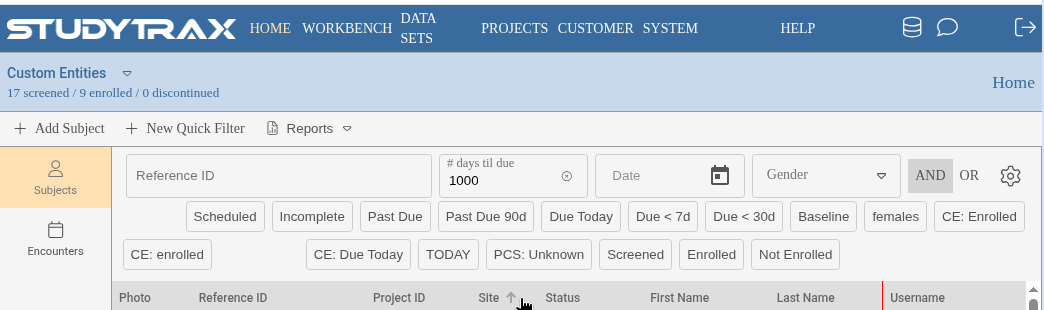
Using schedule status
Quick filters
Filter subjects by status:
#ScheduleStatus = 5
Returns subjects who are paused (follow-up discontinued).
Variable group dependencies
Reference schedule status in a dependency to show or hide fields:
#pauseReason.show(#ScheduleStatus == 5);
Encounter Display Name Expression
Include status in the display name:
'Visit ' + #EncounterIndex + (#ScheduleStatus == 5 ? ' (Paused)' : '')
Interval variable settings
Schedule status can trigger interval visibility or validation rules.
Data sets
Export schedule status using these variable codes:
| Code | Returns |
|---|---|
ScheduleStatus | Numeric code (1–99) |
ScheduleStatusName | Text label (e.g., "Enrolled") |
Pausing follow-up
To discontinue a subject's follow-up schedule:
- Set a discontinuation date (see Set up a Discontinuation Date on public Confluence).
- The schedule status changes to Paused (5).
- Subsequent encounters no longer appear as due.
Related
- Quick filters — filter by schedule status
- Dependencies — conditional logic based on status
- Subjects — view and manage participants