
Encounter Display Names
Customize how encounter names appear on the Dashboard and in reports using display-name expressions.
Role required: Project Management
Where display names appear
- Subject Dashboard timeline
- Reports and exports
- Encounter selectors
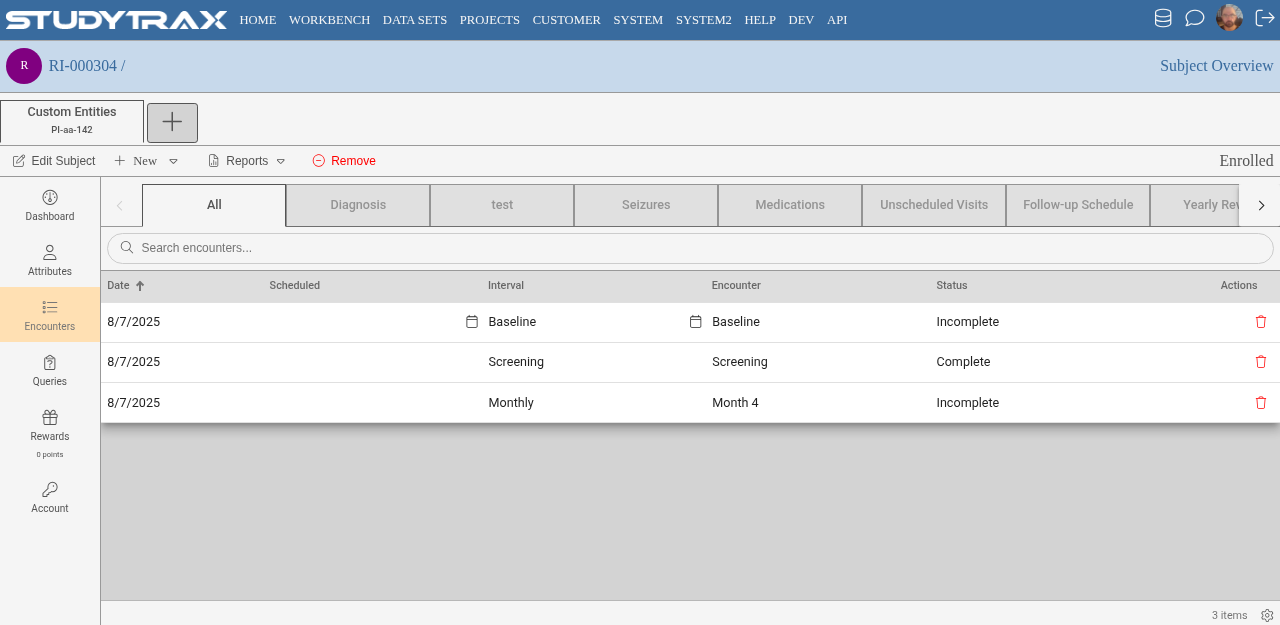
Open the display-name expression
- Sign in at https://my.studytrax.com.
- Open the project.
- Go to Projects → Intervals (confirm in app).
- Open the interval.
- Find the Encounter Display Name Expression field.
Repeating-interval patterns
For non-fixed intervals that repeat, include the encounter index so each occurrence is distinguishable.
| Pattern | Example result |
|---|---|
'Year ' + #EncounterIndex | Year 1, Year 2, Year 3 |
'Year ' + #EncounterIndex + ' (' + #BaselineEncounterDisplayName + ')' | Year 1 (Baseline), Year 2 (Baseline) |
'Month ' + #EncounterIndex | Month 1, Month 2 |
Expression rules
- Cannot use
isNull(). Use||fallbacks instead. - Dates and pick lists. Use
getDisplayValue()to format dates in the user's preferred format and show pick-list labels instead of codes. - String concatenation. Use
+to combine strings.
Icon field
Set an icon for the interval using a Font Awesome name (e.g., capsules, calendar, user-md). The icon appears on the Dashboard.
Related
- Intervals — interval configuration in depth
- Create an interval — basic interval setup
- Data model — intervals vs encounters